

Topic starter
09/03/2026 9:17 am
Prerequisites
Please log in with your upgraded account
Step-by-Step Operations
- Enter the Planned Route page
After logging in, click Vessels → Planned Route in the top navigation bar to access the route management page.
- Configure email auto-upload
① Select the Email method
② Click the Config button
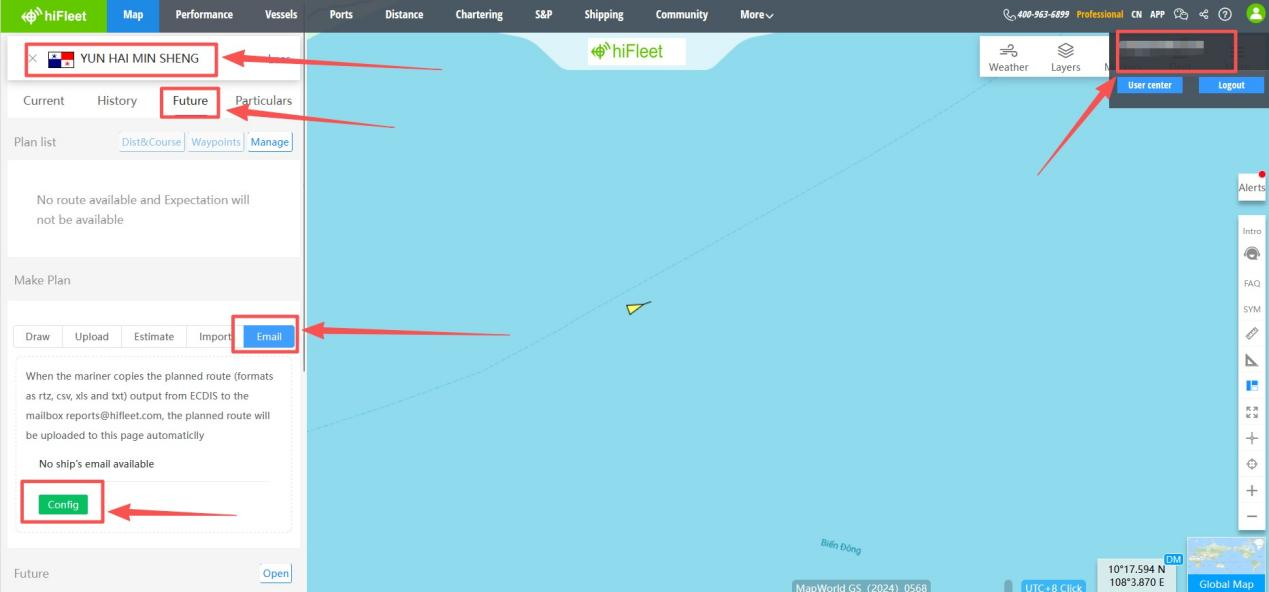
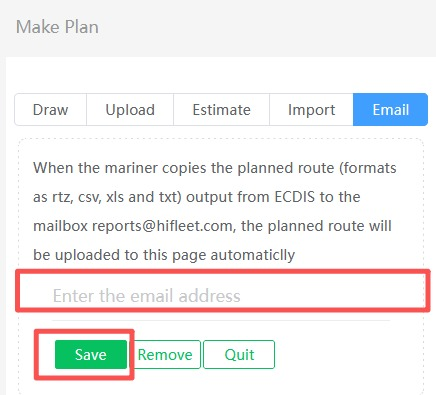
③ Enter the admin email address and save.
- Upload route files
Crews export route files from ECDIS (in RTZ, CSV, XLS, or TXT format) and send them to the designated email:
@hifleet.com">reports@hifleet.com
The system will automatically upload the routes to the platform—no manual operation required.
*Recommendation for Paid Accounts with Master & Sub-Accounts
For paid accounts that have both master and sub-accounts, please note that sub-accounts do not have edit permissions. To ensure that crews on board can successfully upload planned routes automatically, the administrator of the master account should bind the master email address to the corresponding vessels in advance. Only after the master email is bound can the route files sent by the crew be automatically recognized and uploaded by the system.